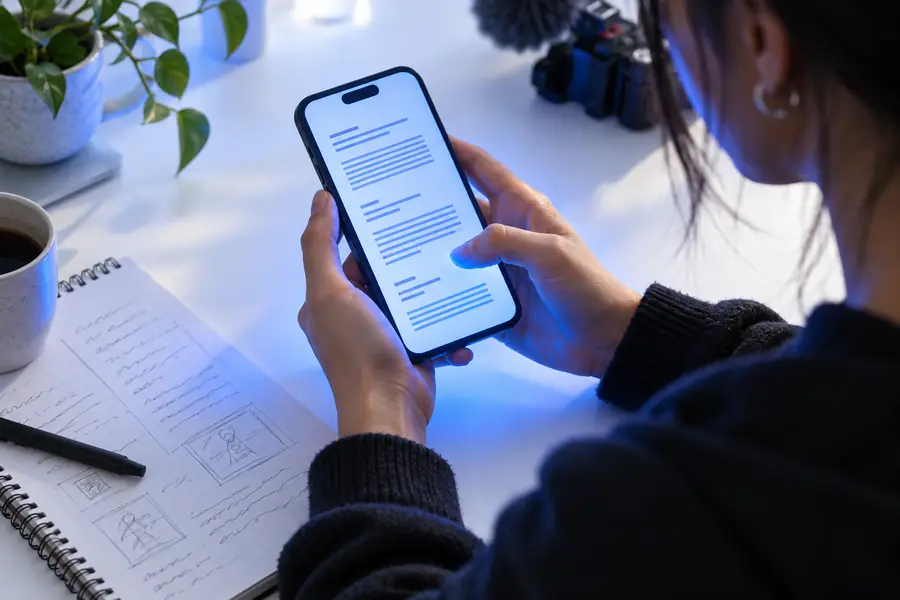

Android workflow

how to use voice maker on android without guesswork

This guide shows how to use voice maker on android from a phone or tablet, whether you are testing a short line in a browser or preparing a longer script. Follow the path that matches your starting point, then run the final checks before you share the result.

Review output before sharing

Set expectations

Decide which case you are

Android access can mean several different things. Identify your starting point first so you do not waste time looking for a control that belongs to another workflow.

  • A mobile browser is not a desktop editor

    Small screens make long scripts, detailed corrections, and side-by-side comparisons harder to manage. Controls may also be compressed or placed behind a menu.

    WorkaroundUse Android for short drafts and first-pass reviews; move to a larger screen when the script needs careful editing.

  • The route may not expose every setting

    A phone view can hide advanced controls, export choices, or account-level options depending on the product interface and browser width.

    WorkaroundRotate the device, open the browser menu, or continue the project on a PC when a control is not visible.

  • Playback quality depends on the device

    Bluetooth delay, low volume, battery-saving modes, and a busy mobile connection can make a preview sound different from the final file.

    WorkaroundTest with headphones and the phone speaker, then listen again after the file has fully loaded.

  • A voice preview is not a finished production

    The first result may still need pronunciation checks, pacing changes, pauses, or a cleaner script before it is ready for an audience.

    WorkaroundKeep the source text, revise one issue at a time, and run a second review before publishing.

Path A

Path A

Choose this route when you are starting with text and want to create a quick voice preview directly from your Android browser.

  1. 1

    Open the voice workspace

    Launch a current browser on your Android phone or tablet and open the voice maker workspace. If the page looks crowded, use landscape orientation or zoom out slightly so the text field and main action remain visible.

  2. 2

    Enter a short script

    Paste or type a clean passage into the text area. Begin with one paragraph rather than a full document, remove accidental line breaks, and check names, numbers, abbreviations, and punctuation before generating a preview.

  3. 3

    Choose, create, and listen

    Select the voice option available in the workspace, submit the text, and wait for the preview to load. Listen once for overall tone and again for words that need pronunciation or pacing changes.

See the difference

Path B

Choose this route when you already have a draft, recording goal, or partially reviewed result and need to move from rough input to a usable mobile preview.

  • Before: rough draft
  • After: review-ready script

The biggest improvement usually comes from cleaner text, not from adding more words.

Unreviewed mobile voice script with rough formatting
Cleaned voice script ready for mobile playback review

Use it by task

Final check

Different Android users need different levels of control. Pick the closest scenario, then use the linked workflow if your project needs more space or a more structured editing process.

Short-form creator

You need a brief narration for a social post, product teaser, or opening line and want to test the wording on your phone.

Keep the script compact, listen at normal volume, and make sure the first sentence works without visual context.

how to use voice maker online

Student or presenter

You are checking pronunciation and pacing for a class presentation, explainer, or rehearsal while away from your computer.

Break the script into logical paragraphs and review proper names before using the audio in the presentation.

how to use voice maker for pc

Small business owner

You want to test a short announcement, service description, or customer message before sending it to a wider audience.

Read the result as a listener would and replace jargon, long sentences, or unclear calls to action.

how to use voice maker online

Accessibility reviewer

You are checking whether written content sounds understandable when heard rather than read on a small device.

Listen for abrupt pauses, confusing punctuation, and words that could be misunderstood without the page in view.

how to use voice maker for pc

Mobile checkpoints

1 Use one pass for overall flow and a second pass for pronunciation or pacing.
2 listens
2 A short first test makes it easier to isolate script or voice issues.
1 paragraph
3 Check the text field, main action, and playback area before you begin.
3 places

Ready to test

Turn your Android draft into a clearer voice preview

Open the workspace, paste a short script, and listen before building a longer version. A careful mobile review can catch unclear wording, awkward pauses, and pronunciation problems early.

Create a voice preview
  • Start with a short passage
  • Review on headphones and speaker
  • Keep the original text for revisions

Common questions

Tutorial FAQ

Yes, the practical starting point is to open the voice workspace in a mobile browser and test a short passage. The exact controls can vary by interface, screen size, and browser, so use a brief script before preparing a longer project.

Try landscape orientation, reduce browser zoom, or close other panels that are taking space. If an important control remains hidden, continue the editing stage on a larger screen rather than forcing a difficult mobile workflow.

Remove unnecessary line breaks, check names and numbers, and use punctuation to show the intended pauses. Starting with one paragraph helps you identify whether a problem comes from the wording, voice selection, or playback.

Phone speakers, Bluetooth devices, volume settings, connection quality, and power-saving behavior can all affect what you hear. Listen once through headphones and once through the phone speaker, then confirm the result after the audio has fully loaded.

Android is useful for short drafts, quick tests, and first-pass reviews. For long scripts, detailed corrections, or careful comparison of multiple versions, a larger-screen workflow is usually easier to manage.

Start creating
Start creating